


WordPress Slow When Logged In? Find the Cause on a Membership Site
Fast logged out, slow logged in? Nine checks, in order, to tell a host problem from a plugin, database or cache problem on a WordPress membership site.

A WordPress site that is fast logged out and slow logged in is usually exposing work that the shared page cache does not cover. Slow queries, plugin hooks and outbound calls then land on the member who is waiting. If slowness increases with traffic, start with the worker check; otherwise, profile a slow page with Query Monitor and follow the checks its readings point to.
This page is the hands-on part. Why the shared page cache often doesn’t cover logged-in pages, and what that means for hosting, is in our guide to the fastest hosting for membership sites. If your site runs BuddyBoss, why BuddyBoss gets slow covers the community-specific causes.
Sources below are WordPress, PHP, MySQL, Query Monitor and WP Rocket documentation, plus web.dev and Chrome’s developer docs, checked on 19 October 2026. Citing a company’s documentation doesn’t mean it endorses this article, and product names are trademarks of their owners.
How do I confirm WordPress is slow only when logged in?
Compare the document response for the same URL while logged out and logged in. Chrome’s “Waiting (TTFB)” figure includes network latency and response preparation, so it is not an isolated measure of WordPress execution, but a large gap between the two sessions is a good reason to keep investigating.
Chrome’s reference describes that timing like this: “The browser is waiting for the first byte of a response.” It adds that the timing “includes 1 round trip of latency and the time the server took to prepare the response” (Chrome DevTools reference).
- Open DevTools, go to the Network tab in each session, and select the document request for the intended page.
- Check its final URL, status and cache headers. If the logged-out request redirects to a login page, record that separately.
- Repeat three times per session on the same connection and compare the middle readings. Test ordinary members and administrators separately.
A larger logged-in TTFB is a reason to investigate cache handling and server processing. Ask your host to correlate it with origin timings. If document TTFB is quick but the page still feels slow, inspect the subsequent requests and browser rendering.
In our experience a page served from cache comes back in a few milliseconds, while the same page built by WordPress for a logged-in member can take a large fraction of a second or more. web.dev’s rough guide is a TTFB of 0.8 seconds or less (web.dev). That guide is aimed at the 75th percentile of real users, so use your own readings to compare two sessions, not to pass or fail a page.
If both sessions are similarly slow, compare document timing with the later requests (images, scripts, theme) and hosting before blaming logged-in work. If the logged-in load is materially slower, continue with this runbook, even if the logged-out load is also slow.
Is it my host or my site?
Traffic-correlated slowness points first to a capacity bottleneck: the PHP worker queue may fill and make even simple pages crawl. A slow request on a quiet server, with a profiler pointing at a plugin, query or table, points first to code or data, though neither result alone proves where the fault lies. The flowchart sorts the two.
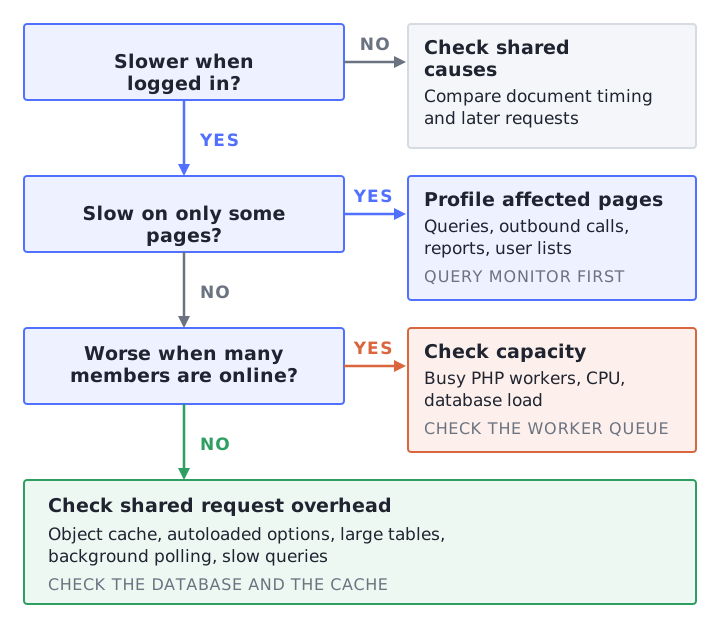
Owners and agencies often can’t tell a hosting problem from a plugin problem, and “it’s your plugins” is a common reply from hosts. Sometimes it is right. The checks below turn that argument into measurements you can both look at.
You need a browser, administrator access and permission to install a plugin. Checks 1, 6 and 7, and the option breakdown in check 5, need command-line or server access, so for those you may want your host or developer on the call.
The runbook: nine checks, in order
Check 1 needs no profiler and shows whether the PHP worker pool is saturated, which narrows capacity against code or data. Check 2 profiles one slow page and tells you which of checks 3 to 9 to run. The rest cover the places slow logged-in pages tend to hide, each with a command or a screen that shows it.
Check 1: Are all PHP workers busy when it is slow?
If the page is quick at 6am and slow at the top of the hour, check capacity first. PHP-FPM’s status page shows the listen queue (requests waiting for a free process), how many processes are active, and whether the process limit has ever been reached. A queue above zero during the slow period means requests are waiting for a worker.
PHP’s manual defines pm.max_children as the setting that “sets the limit on the number of simultaneous requests that will be served” (PHP manual). Its status page lists “listen queue” as “The number of requests (backlog) currently waiting for a free process” and “max children reached” as “Has the maximum number of processes ever been reached?” (PHP manual, FPM status page). The same page warns that the status page “should be restricted to internal requests or known client IPs only”, so ask your host to read it for you instead of opening it to the public.
Ask for readings from a time when members were complaining, not from 3am. Then read them like this:
- Queue above zero and every process active: you are short of workers, or requests are holding workers for too long. Our PHP workers guide has the sizing calculator.
- Every process active but CPU nearly idle: the workers are waiting on something else, such as another server. Go to checks 3 and 7.
- Queue empty and idle processes available at the slow time: PHP worker-pool capacity is probably not the bottleneck at that moment. Move on to check 2.
Check 2: Profile one slow page with Query Monitor
Install Query Monitor, load one slow page as an administrator and read four things: the Timeline panel, Queries by Component, HTTP API Calls and the object cache message on the Overview panel. Query Monitor’s own guide calls the timeline “the quickest way to see where the time during a page load is actually being spent” (Query Monitor).
Query Monitor warns that “other aspects, such as HTTP API calls and block rendering, can contribute more to page generation time than just database queries alone.” Check those panels before assuming the database is the bottleneck.
Four things to know before you trust the readings:
- Query Monitor shows information “for the current page load” only. Reload a few times and compare.
- By default only administrators see its output. If the slowness appears only for members, the plugin’s directory page says you can set an authentication cookie to show output to other users, and points to its Settings panel for details (WordPress.org).
- It adds debugging information to the headers of jQuery-initiated Ajax responses, and performance information to the headers of authenticated REST API responses (same page). That helps when the slow part is a feed or widget that loads after the page.
- WP Rocket lists a known issue with its User Cache add-on: “The Query Monitor plugin sets the DONOTCACHEPAGE constant to true on pages and prevents the cache when User Cache is activated” (WP Rocket). On a site that uses that add-on, Query Monitor changes what you are measuring.
Write down the three slowest components. That list decides what you run next. For how we measure server speed on heavy sites more broadly, see Measuring WordPress server speed.
Check 3: Look for outbound calls that hang
Open Query Monitor’s HTTP API Calls panel. It lists the requests your server makes to other servers during a page load, such as license checks, payment gateways and CRM syncs. Query Monitor calls these “usually ‘invisible’ causes of a slow site” that “can occur sporadically”, so one clean load proves little.
WordPress’s HTTP API gives a request a default timeout of 5 seconds (WordPress developer reference), and a plugin can set its own. For a blocking HTTP request, PHP waits for the call to return, keeping that worker occupied; WordPress uses blocking requests by default, but plugins can request nonblocking behavior. With enough members waiting on blocking calls, that fills the worker pool while the server looks idle, which is why check 1 can show full workers and idle CPU.
What to do:
- Reload the slow page five or six times with the panel open, and again at a different time of day.
- Sort the calls by time taken. Note the component behind any call that is slow, fails, or fires on every page load.
- Ask whether that call has to happen while a member waits. Whether a plugin can cache the response or run it in the background is a question for that plugin’s developer.
Adding worker capacity does not make the remote service answer faster. It may reduce queueing until that capacity fills, so fix or move the blocking call when possible.
Check 4: Is a persistent object cache working?
The object cache is memory WordPress uses to avoid repeating database work. Query Monitor’s Overview panel tells you whether it lasts between requests. If you see “External object cache not in use”, WordPress is caching only inside a single request. If a persistent cache is active, “connected” does not prove it is useful, so check its hit ratio too.
WordPress’s developer reference says “By default, the object cache is non-persistent. This means that data stored in the cache resides in memory only and only for the duration of the request” (WordPress developer reference). The same page notes that without persistent caching, transient data is cached to the options table instead, so a missing object cache can add work to the database.
From the command line, WP-CLI can make a best guess at what is installed:
wp cache typeThe WP-CLI documentation describes it this way: “Attempts to determine which object cache is being used.” Its example output is “Default”, and the page warns the command’s guesses depend on how the third-party cache’s classes are written (WP-CLI). If your site uses the Redis Object Cache plugin, its changelog lists an admin bar item that shows the cache hit ratio, and full diagnostics through wp redis status (WordPress.org).
A very low hit ratio is a reason to ask your host or developer whether the cache helps this workload, since misses have several causes. If the cache is off, find out why before switching it on. Whether a given membership plugin supports your cache backend is a plugin-by-plugin question, and we cover it in Redis object cache for membership sites.
Check 5: Measure your autoloaded options
WordPress loads autoloaded options on every page request. WordPress 6.6 added a Site Health test (6.6 performance summary) that raises a critical issue called “Autoloaded options could affect performance” when the total size of your autoloaded options exceeds 800 KB (Make WordPress Core). If you see it, a plugin or an old plugin’s leftovers are adding weight to every request.
The core team’s reason: “Autoloading a large amount of data that is not used negatively impacts website performance.” Since 6.6, WordPress also stops autoloading a new or updated option larger than 150,000 bytes unless the code explicitly asks for autoload, and the post says no upgrade routine is planned, so an option saved before 6.6 keeps the autoload setting it had.
Read the autoloaded-options result on the Site Health screen in the WordPress admin. For a breakdown, ask your developer to list option names and byte sizes using the values from wp_autoload_values_to_autoload(), including autoloaded transients. wp option list --autoload=on leaves out some autoload values and hides transients by default, so it is not a complete inventory. The SQL for the inventory is in our database optimization guide, and the core post says the Performance Lab plugin gives the Site Health check more detail.
Back up the database first, change one option at a time and re-measure after each change. An option that every page needs should stay autoloaded, so the person who knows which plugin owns it should decide.
A related pattern we have seen: a plugin that rewrites the same option on every request. Filter Query Monitor’s Queries panel by query type and look for repeated UPDATE statements against the options table.
Check 6: Find the tables that grew too large
Activity logs, audit trails and any table a plugin writes to on every request can grow large on a membership site, and screens that read them get slower as they grow. Ask for table sizes, largest first, with wp db size --tables --orderby=size --order=desc (WP-CLI), and look for a log or audit table you did not expect near the top. We have seen those tables become a hidden cause of slow logged-in and admin pages.
Find which plugin owns the table and whether it has a retention setting. Shortening retention is usually safer than deleting rows by hand, and some logs are kept for support or compliance reasons, so have your developer confirm and take a backup first. Our database guide lists which membership tables are safe to trim.
Check 7: Look for slow queries and temporary tables
Query Monitor shows slow queries on one page, and MySQL’s slow query log catches them across all traffic. The log is off by default and only records statements slower than long_query_time, which defaults to 10 seconds in the MySQL 8.4 manual (MySQL manual). Ask your host whether they can enable it with a lower threshold for a limited capture window, with disk-space monitoring, log rotation and access controls in place.
For temporary tables, EXPLAIN can show Using temporary in its Extra column, and MySQL moves an in-memory temporary table to disk once it passes tmp_table_size (MySQL manual). Ask your host to capture the Created_tmp_tables and Created_tmp_disk_tables counters twice during the slowdown and compare the increases. They are global values for the whole MySQL server (MySQL manual), so they cannot tell you which site or query caused a spill.
Ask your host whether the slow query log is on and whether slow queries or on-disk temporary tables show up when logged-in pages are slow, and take any query text to your developer. The detail on slow queries, temporary tables and MySQL settings is in our database guide.
Check 8: Count the background requests
Open the Network tab, sit on a logged-in page for two minutes without touching anything, and watch for repeated requests to admin-ajax.php or wp-json. WordPress’s Heartbeat API “sets up an interval (called the “tick”) to run every 15-120 seconds”, and each tick is a request PHP has to answer.
The Heartbeat documentation says that on each tick the client “sends this to the server and waits for a response. On the server, an admin-ajax handler takes the passed data, prepares a response, filters the response, then returns the data in JSON format” (WordPress developer docs).
For each repeating request, check its action or route to see which plugin or feature sends it, and how often. Multiply each request’s frequency by the number of concurrent sessions that make it to estimate requests per unit time, which says nothing about CPU or database cost. Whether a plugin lets you lengthen its polling interval is a question for its settings page or its developer. Query Monitor’s headers on Ajax and REST responses (see check 2) show what each request cost. Scheduled jobs are a separate kind of background work, covered in WP-Cron and Action Scheduler on membership sites.
Check 9: Test the screens that scale with member count
If the slow screen is the Users list, a member export or an LMS report, the work grows with your member count. On a small site, the extra work may be too small to notice.
Two details from the WordPress reference show the kind of work involved when code queries users. WP_User_Query counts the total number of matching users by default: count_total is true, and the reference says “If you don’t need the total number of results, set this to false”. And a user meta query that uses LIKE wraps the value in wildcards, so “the string is searched anywhere in the custom field value” (WordPress developer reference). Neither is a bug. Both cost more as the user table grows.
We have seen Users screens time out on large member bases, especially when the object cache had been switched off or when a plugin added expensive database calls for every row on the page. Load the screen with Query Monitor on, open Queries by Component and look for one component with a long list of near-identical queries. Query Monitor flags duplicate queries for you.
Reports are a separate case. Some LMS reporting plugins slow down sharply as learner counts grow, because they process everything in one request instead of in batches. Ask the vendor whether the report can be limited by course or date range, or run as a background export, and avoid running it during a launch or a live session. Our LearnDash hosting guide covers the wider server picture for course sites.
Which symptom points to which cause?
Use the table to map a visible symptom to the first check worth running. Each row is a lead, not a verdict: one symptom can have several causes, so confirm it with the measurement in the third column before changing code, caching or server capacity.
| What you see | Likely cause | How to check | Check |
|---|---|---|---|
| Fine in the morning, slow at the top of the hour | Busy PHP workers | FPM status: listen queue, active processes | 1 |
| Slow on a quiet server, high SQL time | Heavy or repeated queries | Query Monitor, Queries by Component | 2, 7 |
| Page time far above SQL time | Outbound calls or PHP work | HTTP API Calls panel, Timeline | 3 |
| ”External object cache not in use”, or low hit ratio | No cache, or one that is not helping | Overview panel, wp cache type | 4 |
| Every page sluggish, Site Health autoload warning | Large autoloaded options | Site Health, then a developer’s option inventory | 5 |
| Slow log, activity or audit screens | Oversized tables | wp db size --tables | 6 |
| Occasional long stalls, no clear page | Slow queries, temporary tables on disk | Slow query log, EXPLAIN | 7 |
| Requests keep firing on an idle page | Polling | Network tab | 8 |
| Users list or reports time out | Work that scales with members | Query Monitor on that screen | 9 |
When it is the host
Suspect a host-side capacity limit when the worker queue appears at slow times, though a full worker pool can also come from slow plugin or outbound calls. Ask your host to correlate slow requests with worker queues and CPU, memory and database limits. If testing changes on a copy, isolate live payments, webhooks and email first, and confirm that the same member action still works before comparing timings.
Questions that get a useful answer:
- How many PHP workers does my site get, and what did the FPM status show at these times: the listen queue, and whether the process limit was reached?
- Is a persistent object cache active for my site, and what is its hit ratio?
- Is the slow query log on, and what does it show for these times?
- Are there limits on CPU, memory or processes for my site, and did it reach them?
- If the cause turns out to be in a plugin, will you help find it, or hand it back?
Our free site speed audit runs synthetic load tests on concurrency and PHP worker usage. Get a free site speed audit if you want a second read on whether your server or your site is the limit. To reproduce a slowdown on demand, see load testing with logged-in members.
When Query Monitor points at a plugin
If Query Monitor attributes expensive work to a plugin, take the timings and queries to your developer and host, who can judge whether the remedy is code, data, caching or server capacity. If nobody maintains the site, our sister agency MemberFix does plugin and custom code work on WordPress membership sites.
Frequently Asked Questions
Why is my WP admin so slow?
WordPress’s Heartbeat API sends a request to the server every 15 to 120 seconds on pages that use it, and each admin screen runs PHP and database queries. Start with Query Monitor on the slow wp-admin screen, then use checks 2 to 9 to inspect SQL, outbound calls, object caching, autoloaded options, tables, polling and user queries. Our hosting guide covers why wp-admin and logged-in requests usually bypass the shared page cache.
Why is WordPress fast logged out but slow logged in?
The gap usually appears because logged-out HTML is served from shared cache while a logged-in request is generated for that member. The fastest hosting guide covers that mechanism. Compare the same URL both ways, then use the runbook above to find the slow query, call, cache or capacity limit.
Does a caching plugin help logged-in users?
A page-cache plugin helps logged-out visitors most, because the same saved copy goes to everyone. Some offer per-user caching: WP Rocket’s User Cache add-on “creates a dedicated set of cache files for each logged-in WordPress user”, and its documentation says to exclude “pages with sensitive information, or pages with dynamic content” (WP Rocket). Test a first load and a repeat load as the same member to see whether your cache actually helps. Page caching on a membership site lists what each membership plugin says to exclude.
Is Query Monitor safe on production?
Query Monitor’s own FAQ answers whether it affects page generation time with “Yes, but only a little”, and says it uses more memory than the author would like on pages with hundreds of database queries (WordPress.org). By default only administrators see its output. Install it, take your readings, then deactivate it, and if you use WP Rocket’s User Cache add-on, remember the caching conflict in check 2.