


WP-Cron and Action Scheduler: Why Renewals and Drips Run Late
By default, WP-Cron checks due jobs on page loads, so renewals, drips and reminders can run late. Learn how to replace the trigger safely with WP-CLI.

WP-Cron schedules WordPress tasks, and Action Scheduler queues background jobs and normally uses WP-Cron to start processing them. By default, WP-Cron checks for due jobs when a request loads WordPress, so on a membership site renewals, failed-payment retries, drip releases and reminder emails can run late during quiet periods. A server cron running WP-CLI removes that traffic dependency, but overdue jobs can also point to failing callbacks or too little capacity. Verify the replacement runner before you disable visit-triggered WP-Cron.
Sources below are the vendors’ own documentation, checked on 19 October 2026. Citing a company’s documentation doesn’t mean it endorses this article, and product names are trademarks of their owners.
The safe order, in short (the full steps are in how to set up a real server cron safely):
- Add the server cron job that runs
wp cron event run --due-now. - Confirm those runs succeed on their own.
- Only then add
define( 'DISABLE_WP_CRON', true );towp-config.php.
What is WP-Cron, and why does it make renewals late?
WP-Cron is how WordPress and its plugins schedule time-based tasks, and it has no clock of its own. WordPress’s developer handbook puts it plainly: “WP-Cron does not run constantly as the system cron does; it is only triggered on page load.” It also names the failure: “Scheduling errors could occur if you schedule a task for 2:00PM and no page loads occur until 5:00PM” (WordPress).
For a blog, a job that runs three hours late is a shrug. On a membership site, the scheduled job is the renewal charge, the retry after a failed card, or the email that opens week two of a course. Several things make the lateness worse there:
- Traffic is uneven. Members cluster around launches, live sessions and mornings, and the quiet hours between can be long.
- Page caching hides some visits from WordPress. Paid Memberships Pro notes that “WordPress is not loaded when your site serves a page from cache”, so cached front-end visits do not kick off WP-Cron; dashboard and other non-cached requests still can (Paid Memberships Pro).
- A visit can trigger a separate WP-Cron request. The visitor does not wait for that request to finish, but its background work can still compete with members for PHP workers and other server resources. WooCommerce’s guide describes the mechanism: “WordPress uses cURL to spawn the cron in a separate request, so the site visitor user who “awoke” the cron does not have to wait until the cron is finished” (WooCommerce).
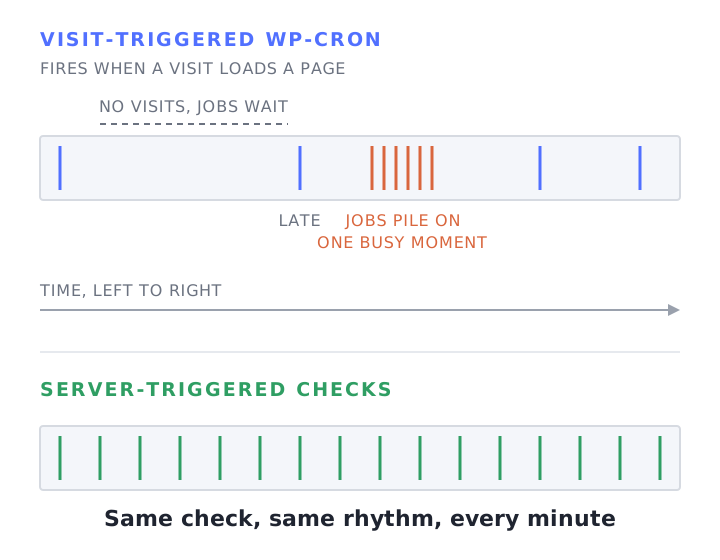
The picture below compares the two models.
What is Action Scheduler, and which membership plugins use it?
Action Scheduler is a job queue library for WordPress that stores tasks in database tables and runs them in batches. Its own site describes it as “a library for triggering a WordPress hook to run at some time in the future (or as soon as possible, in the case of an async action)” (Action Scheduler). Plugins bundle it, so one site can have several plugins feeding the same queue.
It does not replace WP-Cron. By default it hangs off it: “The scheduler will attempt to run every minute by attaching itself as a callback to the ‘action_scheduler_run_schedule’ hook, which is scheduled using WordPress’s built-in WP-Cron system” (Action Scheduler). So the queue can be well organized and still wait for a visit to start.
Which plugins use which system, according to their own documentation:
| Plugin | Scheduler it documents | Source |
|---|---|---|
| WooCommerce Subscriptions | Action Scheduler: it “uses a feature of WooCommerce called Action Scheduler to process scheduled events, like subscription renewals and expiration” | WooCommerce |
| WooCommerce | Action Scheduler processes “webhooks for WooCommerce” | Action Scheduler |
| Paid Memberships Pro | Action Scheduler from v3.5; older versions, add-ons and legacy features still use WP-Cron | Paid Memberships Pro |
| MemberPress | Its own WP-Cron jobs, including a job worker that runs every minute and a reminders worker every 15 minutes | MemberPress |
| LifterLMS | WP-Cron: background actions “include triggering delayed engagements, processing recurring payments, expiring access” (the guide was last modified in 2017) | LifterLMS |
| LearnDash | WP-Cron schedule for its Notifications add-on | LearnDash |
We left out plugins whose documentation we could not check. If a plugin on your site isn’t in this table, look in its own docs for the words “cron” and “Action Scheduler”.
If you send drip-style emails, read LearnDash’s note on notification delays. It says: “This is partially a limitation of WordPress, but also depends on the type of hosting you have.” Its fix has two parts. A real server cron makes sure the check happens, and the notification schedule itself, which LearnDash says is “usually twice daily” by default, can be made more frequent with the WP Crontrol plugin (LearnDash). A real cron on its own does not turn a twice-daily job into a minute-by-minute one.
How do WP-Cron and Action Scheduler fail on a membership site?
They fail in five recognizable ways, and each has a different first check. The table gives the symptom, the usual cause and how to confirm it.
| Symptom | Usual cause | How to check |
|---|---|---|
| Renewals, drips or emails late in quiet hours | Nothing loaded a page, so WP-Cron didn’t fire | Next-run times that stay in the past across repeated checks in wp cron event list; past-due actions that cluster overnight |
| Site slows at busy times; members wait | Visit-triggered jobs run in the same PHP worker pool as members | Slow pages that line up with job times; PHP worker usage in your host’s graphs (see PHP workers on membership sites) |
| Renewals fail or sit “in-progress”; timeout notices | The runner’s loopback request is blocked, or the host cuts the request off | Site Health loopback result; the Failed Scheduled Actions log; the PHP time limit in WooCommerce’s status page |
| Queue grows into very large tables | Heavy queueing from automation, with cleanup that can’t keep up | Size of the tables ending in actionscheduler_actions and actionscheduler_logs; how old the oldest pending action is |
| Actions stuck in progress or failing repeatedly | A fatal error or crash interrupted a runner or a job | PHP error logs and the action’s own log entries around the time the queue stalled |
Late when the site is quiet
This is the textbook case. WooCommerce’s own guide says: “This means that, on a site with low traffic, events might not run at their scheduled time” (WooCommerce). For Subscriptions, the symptom it lists is: “Subscriptions are active, but next payment date is in the past.”
Slow when the site is busy
A visit can trigger a separate WP-Cron request. The visitor does not wait for that request to finish, but its background work can still compete with members for PHP workers and other server resources. We cover how worker pools fill up in PHP workers on membership sites. Our BuddyBoss speed guide covers the BuddyBoss case, with email digests as its example. For the wider checklist of why logged-in pages are slow, see why WordPress is slow when logged in. This page is the version that applies across plugins.
Cut off in a loopback request
By default, Action Scheduler continues a long queue by asking the site to call itself: “if there are additional actions to process, an asynchronous loopback request will be made to the site to continue processing actions in a new request” (Action Scheduler). WordPress describes the same mechanism for WP-Cron: “WordPress uses loopback requests to start WP-Cron” (WordPress).
That works until something between the site and itself gets in the way. WordPress tells you to ask your host “whether server-side security rules, firewall rules, DNS configuration, SSL configuration, or HTTP authentication are blocking the site from requesting its own URL.” WooCommerce adds a note for sites behind a CDN or proxy: use a real server-level cron “to avoid blocked internal requests which can cause WP-Cron to not trigger, despite the request being sent” (WooCommerce).
Host time limits matter here too. Action Scheduler’s WP-CLI guide explains why the command line avoids the problem: “With a regular web request, you may have to deal with script timeouts enforced by hosts” (Action Scheduler). It also marks slow jobs as failed: “If an action runs for more than 5 minutes, Action Scheduler will assume the action has timed out and will mark it as failed” (Action Scheduler). A pattern we run into: subscription renewals fail when payment jobs go through a loopback web request that the server cuts off, and running the queue from a real server cron with WP-CLI is the usual fix.
If a renewal timed out, check what actually happened before you retry it. WooCommerce’s guide walks through comparing the subscription’s order notes with the payment gateway to see whether the charge was captured, because “Failure Before Payment” and “Failure After Payment” need different fixes (WooCommerce).
A queue that has grown too large
When WP-Cron is triggered by visits and an automation plugin queues a lot of work, we have seen scheduled actions pile up into millions of rows and multi-gigabyte tables, and the background work then competes with members for the CPU. The database optimization guide covers sizing and trimming those tables. Cleanup is built in, but it has limits you can read in the docs: Action Scheduler deletes “actions which were completed or canceled more than a month ago”, and keeps failed actions for three months by default from version 4.0.0 (Action Scheduler, Action Scheduler performance guide).
Stuck after a crash
A fatal error can interrupt a runner before it finishes its work. Action Scheduler has housekeeping for claims left behind: “the scheduler will remove any existing claims on actions which have been sitting in a queue for more than five minutes” (Action Scheduler). Check PHP error logs and the individual Action Scheduler log entries around the failure time (WooCommerce keeps a Fatal Errors log under WooCommerce > Status > Logs). WordPress normally unschedules the current cron occurrence before invoking its callback, so a crash doesn’t by itself leave that occurrence queued for another attempt (WordPress source). Find the failing callback before you retry payment work.
How do I check whether my scheduled jobs are running?
Look at both systems and compare them. WP-Cron holds the schedule, Action Scheduler holds the queue, and the check is whether each has moved recently. A few minutes in the right screens usually shows where to look next.
- Open the Action Scheduler screen. It is at Tools > Scheduled Actions, and at WooCommerce > Status > Scheduled Actions when WooCommerce is installed (Action Scheduler). Look for pending actions whose scheduled date is in the past (Action Scheduler calls these past-due), then for failed and in-progress ones. The docs say: “Actions that are past-due have missed their scheduled date; because of how WP Cron works, it is normal to have some past-due actions. If there are several past-due actions more than one day old, there may be something wrong with your site” (Action Scheduler).
- Check execution logs as well as scheduled dates. In Scheduled Actions, inspect the log entries for actual start, completion and failure times; Action Scheduler logs when an action is created, starts, completes and fails (Action Scheduler). Compare overdue pending actions across repeated checks with WP-Cron’s next-run times (the WP Crontrol plugin, or
wp cron event list). Overdue work that persists across checks is worth investigating, while a single overdue timestamp or an old completed action proves little by itself. - List the cron events from the command line.
wp cron event listshows each hook withnext_run_gmtandnext_run_relative(WP-CLI). Action Scheduler adds its own commands underwp action-scheduler, and says the best way to see them all is to run that command or add--helpto any of them (Action Scheduler). - Check the loopback. Tools > Site Health reports failing loopback requests (WordPress).
- Check the plugin’s own jobs. For PMPro, first identify whether your installed version uses Action Scheduler or legacy WP-Cron jobs, since v3.5 and newer use Action Scheduler for core expirations and reminders (Paid Memberships Pro). Perform expiry tests on an isolated test installation with test memberships, live payments blocked and outgoing email captured. Manually running an expiry job is not a read-only check. MemberPress says reminders that arrive “intermittently and late” point at its reminders job not being triggered regularly (MemberPress).
How do I set up a real server cron safely?
Set up a server cron that runs WP-CLI every minute, prove it works, and only then switch WP-Cron off. The order matters because WordPress’s own handbook says to schedule the system task first, and then add define( 'DISABLE_WP_CRON', true ); to wp-config.php. If you disable WP-Cron first and the replacement is not running, ordinary WP-Cron jobs have no trigger, while Action Scheduler is left dependent on WP Admin async requests: WooCommerce notes that “Without the initial event triggered by WP-Cron, the events queue in Action Scheduler can only be processed via WP Admin async requests” (WooCommerce, WordPress).
-
Look before you change anything. Note the number of past-due and failed actions, and what is in them. WooCommerce says that when WP-Cron comes back, “Action Scheduler has those events safely stored in a queue waiting to be run”, including renewal payments that were missed. A runner that catches up will try them. If a backlog is days old, have someone decide what should still be charged before it drains.
-
Add the server cron job. The WordPress handbook describes the system scheduler as the replacement, and its examples request
wp-cron.phpover HTTP (WordPress). The WP-CLI route skips the web server entirely. Cron often runs with a restrictedPATH, so find the absolute executable paths withcommand -v flockandcommand -v wp, then use those paths in the crontab. Give each site a unique lock filename. Change the placeholders below, and run the job as the site’s own user, since the handbook notes tasks run as whichever system user owns the crontab:* * * * * /path/to/flock -n /tmp/your-site-wp-cron.lock /path/to/wp cron event run --due-now --path=/path/to/your/wordpresswp cron event run --due-nowruns “all hooks due right now”, and the WP-CLI docs add: “Respects the doing_cron transient to prevent overlapping runs” (WP-CLI). -
Keep runs from stacking. The
flockin each line is the overlap protection. Its-noption means “Fail rather than wait if the lock cannot be immediately acquired” (flock manual). If one run is still busy at the next minute, the new one exits instead of stacking up. Send output to a log file you can read, and rotate it. -
Optional: run Action Scheduler’s queue directly. For large queues, long-running tasks or sites with lots of other cron activity, Action Scheduler’s docs call WP-CLI “a much better choice” than the default runner. Add a second line with its own lock file:
* * * * * /path/to/flock -n /tmp/your-site-action-scheduler.lock /path/to/wp action-scheduler run --path=/path/to/your/wordpressThe batch size defaults to 100 actions (
--batch-size),--batchessets how many batches to run (0 keeps going until none are left), and concurrent batches are limited unless you add--force(Action Scheduler). Be careful with the--hooksand--groupoptions. Action Scheduler warns that they “should be used with caution” when actions depend on each other, for example a subscription’s payment action that must run before its expiration action. -
Verify the server cron itself. Check timestamped output and exit status from the automatically scheduled WP-CLI runs, under the site’s user. Confirm that those runs process due events successfully. Don’t trust advancing timestamps or a draining queue yet: while visits can still trigger WP-Cron, they may be doing the work. Fix any execution errors before changing
wp-config.php. -
Then disable the visit-triggered cron. Add
define( 'DISABLE_WP_CRON', true );towp-config.php. The handbook says WordPress otherwise “will continue to run WP-Cron on each page load. This is no longer necessary and will contribute to extra resource usage on your server” (WordPress). For sites that run Action Scheduler only through WP-CLI, there is also a plugin that turns off its default runner. The docs warn that you must then run it yourself, “otherwise no scheduled actions will be processed” (Action Scheduler). -
Watch the next real cycle. Check the next renewal window, the next drip release and the next reminder batch. Seeing the cron job run is only half the test. You also want a renewal that lands on time.
If you moved hosts and renewals stopped, check whether the new server is missing a cron job the old one had. Our guide to moving a membership site covers renewals during a move.
Can I tune Action Scheduler for a big queue?
Yes, with the filters Action Scheduler documents, but treat them as a second step. The defaults are conservative. Its performance guide says “the default processing thresholds are more conservative than many servers could support”: a request stops at 90% of available memory or when another 3 actions would push it past 30 seconds, and it works through one concurrent queue (Action Scheduler performance guide).
The guide documents these filters:
action_scheduler_queue_runner_time_limitraises the 30 second default, if your host supports longer web requests.action_scheduler_queue_runner_batch_sizeraises the web runner’s default batch of 25 actions (the WP-CLI command above defaults to 100), which “can slightly improve performance” when actions finish quickly.action_scheduler_queue_runner_concurrent_batchesraises the single concurrent batch. The guide’s warning: “increasing the number of concurrent batches can substantially increase server load and take down a site.”
The guide’s first recommendation skips the filters altogether. It calls “WP CLI to process queues” “the best approach to increasing processing speed.” Set up the real cron first, then tune only if the queue still can’t keep up. Each change should be tested, one at a time, with your host or developer watching PHP worker use.
How do I clean up old completed actions?
Action Scheduler’s wp action-scheduler clean command removes old actions in batches. By default it handles canceled and complete actions older than 31 days, and it takes --batch-size, --before, --status and --pause options (Action Scheduler). The retention period is set by the action_scheduler_retention_period filter, and failed actions have their own (action_scheduler_retention_period_for_failed) (Action Scheduler performance guide).
Back up before a bulk clean, and read the failed actions before you purge them. For a membership site, a failed action may be a renewal that nobody has looked at. For which other tables are safe to trim, see WordPress database optimization for membership sites.
What should I ask my host about cron?
Ask these six questions.
- Can you run a real cron job for my site with WP-CLI, as the site’s own user?
- Can it run every minute? LearnDash warns that “Some shared hosting services will not allow cron jobs to run once per minute” (LearnDash). Vendor guides range from every minute to every five.
- Is the server allowed to request its own URL, including through any CDN, firewall or HTTP authentication in front of the site?
- What are the PHP time limit and request timeout, and how are cron runs that exceed them logged?
- How much of my PHP worker pool do cron runs use at busy times?
- If I have a copy of the site (a staging site or a clone), is its cron and payment activity switched off?
If you would rather have someone check this with you, get a free site speed audit. It uses synthetic load tests on concurrency and PHP worker usage, which is where a cron pile-up would hurt members first. Platform pages such as WooCommerce Memberships and Subscriptions hosting show how we approach each stack.
Frequently Asked Questions
Is it safe to disable WP-Cron?
Yes, once a real server cron is running and you have confirmed it. WordPress’s handbook gives the sequence: schedule the system task, then set DISABLE_WP_CRON to true (WordPress). Disabling it first leaves ordinary WP-Cron jobs without a trigger and leaves Action Scheduler dependent on WP Admin requests.
How often should cron run?
Every minute is the rate Action Scheduler assumes: it “will attempt to run every minute” (Action Scheduler), and MemberPress’s job worker runs every minute (MemberPress). Other vendors suggest five minutes (Paid Memberships Pro, LifterLMS). Check your host’s limits.
Why does my site have so many past-due actions?
A few are normal, because past-due just means an action missed its scheduled date. Action Scheduler’s FAQ says that if there are “several past-due actions more than one day old, there may be something wrong with your site” (Action Scheduler). Common reasons are a stopped WP-Cron, a blocked loopback request, or a job that keeps failing.
Can I delete completed actions?
Yes. Action Scheduler already deletes completed and canceled actions after about a month (Action Scheduler), and wp action-scheduler clean can do it sooner. Take a backup first, and look at failed actions before purging them, since they can hold renewals that need attention.
Does a page cache stop WP-Cron from running?
It can reduce how often it runs. WordPress is not loaded when a page is served from cache, so cached visits don’t trigger WP-Cron (Paid Memberships Pro). A server cron removes the dependence on visits altogether.