


Page Caching on a Membership Site: What to Cache and What to Exclude
Cache public pages, bypass the login cookie, exclude account, checkout and course pages. What each membership plugin's docs say, and how to prove it works.

A membership site can share cached HTML only when that response is identical for everyone receiving it. As a starting point, bypass shared page caching for logged-in users and for guest sessions whose cookies change the HTML, and exclude login, password-reset, account, checkout and protected-content URLs. Apply the exclusions at every HTML-caching layer, including the CDN, then test different users and guest carts.
Page caching saves finished HTML so a later request can reuse it instead of rebuilding the page. This page covers page and CDN caching only. Why logged-in pages skip the cache, and what that means for hosting, is in our guide to the fastest hosting for membership sites. Object caching has its own page: Redis object cache for membership sites.
Sources below are the vendors’ own documentation, checked on 19 October 2026. Citing a company’s documentation doesn’t mean it endorses this article, and product names are trademarks of their owners.
What should a membership site cache, and what should it exclude?
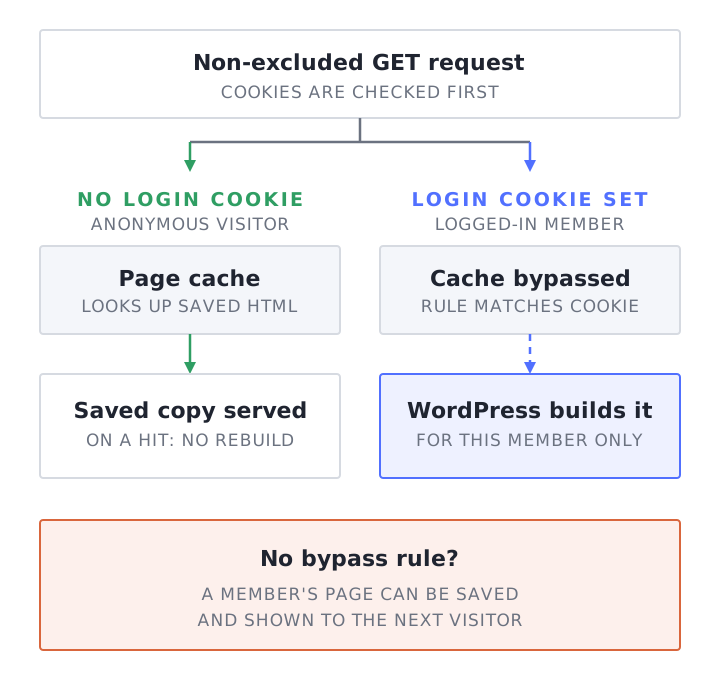
Cache the pages that look the same to everyone: sales pages, blog posts and a public course catalog, served to logged-out visitors. Exclude anything that changes per person: login, password reset, account, checkout, thank-you, course and lesson, and community pages. Bypass the cache for any request that carries the login cookie, so a member never receives a copy built for someone else.
The vendors say the same thing in their own words. MemberMouse writes that “dynamic aspects such as forums, memberships, logins, checkouts, and personal data need exclusions from optimizations to function uniquely without relation to anything else” (MemberMouse). Paid Memberships Pro puts the trade-off this way: “a slower but functional checkout page is going to be better than a fast but broken checkout page” (Paid Memberships Pro).
What does each membership plugin say to exclude?
Each vendor names a different set. MemberPress lists six default paths, WooCommerce names Cart, My Account and Checkout plus five cookies, BuddyBoss lists seven community paths, we found no general LearnDash caching exclusion guide, and Memberium for Keap says not to page-cache a membership site at all. The table is a review checklist, not a configuration to paste.
Slugs are customizable, cookies can change between versions, and the syntax differs between Cloudflare, LiteSpeed and each caching plugin. Check every rule against your own site. Where the vendor’s page shows a date, the row includes it.
| Plugin | Pages and paths the vendor says to exclude | Cookies the vendor mentions | Vendor document |
|---|---|---|---|
| MemberPress | Defaults /thank-you, /account, /login, /register, /unauthorized, /mepr. Add /coaching with CoachKit, /mpdl with Downloads | None listed | Caching plugins with MemberPress (updated 9 Dec 2024) |
| LearnDash | No caching doc found (checked 19 October 2026) | No caching doc found (checked 19 October 2026) | None. See the note below the table |
| LifterLMS | Student Dashboard, Checkout or Purchase page, including subpages and query parameters | Caching FAQ names none for LifterLMS. Cookies FAQ names wp_llms_session and llms-tracking | Caching FAQ (updated 26 Jun 2026), Cookies FAQ (updated 23 Oct 2024) |
| WooCommerce | Cart, My Account, Checkout. Varnish example also passes ?add-to-cart= and ?wc-api= | woocommerce_cart_hash, woocommerce_items_in_cart, wp_woocommerce_session_, woocommerce_recently_viewed, store_notice[notice id]. _wc_session_ if you use database caching | Configuring caching plugins (no date shown) |
| Paid Memberships Pro | All PMPro-generated pages plus Log In and Password Reset, “specifically” checkout and confirmation. Example paths /membership-account*, /membership-checkout*, /membership-levels*, /login/. The gateway webhook or IPN URL | None listed | Caching (updated 1 Apr 2026) |
| BuddyBoss | /members/*, /profile/*, /groups/*, /groups-single/*, /activity/*, /notifications/*, /messages/* | None listed | Paths that should be excluded (updated 21 May 2025) |
| MemberMouse | Every MemberMouse core page (filter “Show only MM Core Pages”), with wildcards on checkout, reset password, error and confirmation pages. /wp-content/plugins/membermouse/*. Your courses URL | None listed | Configuring caching and optimizations (updated 15 Jul 2024) |
| Restrict Content Pro / Kadence Memberships | The login page (set under Restrict > Settings > Misc), or the page holding the [login_form] shortcode | rcp-resetpass- plus the cookie hash, for hosts with a cookie whitelist | Password reset links aren’t working (updated 12 Aug 2026) |
| Memberium for Keap | No page list. Page caching is “unsupported and incompatible” | None listed | Why page caching and membership sites don’t mix (published 15 Mar 2023) |
- We found no LearnDash caching doc (checked 19 October 2026). Its general troubleshooting page says performance and speed plugins “are known to cause issues with quizzes” and recommends disabling them during diagnosis (LearnDash). Do that on a test copy or in a controlled maintenance window, not during normal live traffic. WP Rocket’s membership page names
/courses/(.*)as an example for LearnDash, but that is WP Rocket’s example, not LearnDash’s (WP Rocket). If you run LearnDash, take your list from the pages and add-ons you actually use and prove it with the test below. - We found one relevant Restrict Content Pro / Kadence Memberships troubleshooting doc, written for password-reset links, so it does not list checkout or registration pages. Its author’s guidance for that problem is to exclude the login page from caching, and it names W3 Total Cache, WP Rocket, WP Super Cache and WordFence as plugins that cause issues without the exclusion. Plan to test the rest yourself.
- Memberium for Keap takes a different position. It says to keep the membership site on a subdomain with caching disabled and to use caching only on a marketing site, so treat any page cache on a Memberium membership site as unsupported.
- WooCommerce cookies and pages combine. If you sell courses or memberships through WooCommerce, LifterLMS’s own FAQ tells you to follow WooCommerce’s exclusions as well, so both rows apply.
What breaks when page caching is wrong?
Incorrect page caching can expose another member’s details, show enrolled members a sales page, or interfere with login, password reset and checkout. These symptoms also have other causes. The table lists caching-related explanations to investigate, not diagnoses.
| What you see | Possible caching-related cause | Vendor documentation |
|---|---|---|
| A member sees another member’s progress or account details | A personalized page was saved and served to others | LifterLMS, Memberium |
| Enrolled members see the sales page or cannot reach protected content | The logged-out copy of a page is served to logged-in members | LifterLMS, Paid Memberships Pro |
| Password reset never confirms, or loops back to login | Login, reset or My Account page is cached | LifterLMS, WooCommerce, Restrict Content Pro |
| Checkout fails or payments are not recorded | Checkout page or the gateway’s callback URL is cached | MemberPress, Paid Memberships Pro |
| Wrong cart count, price or coupon | A cart or session cookie is not respected by the cache | WP Rocket, LifterLMS |
| ”Invalid nonce” or expired form errors | A cached page carries a token that has since expired | WordPress, MemberMouse |
The vendors are blunt about the cost. LifterLMS says that if personal-data pages are cached, “users may see outdated or incorrect information, such as another student’s progress or an incomplete checkout state.” Memberium says page caching “can cause the wrong information to be displayed to each member, leading to confusion and potential security issues.” MemberPress ranks failed payments first: “The most serious one is the inability to process transactions appropriately, which can cause financial losses to the website owners” (MemberPress).
Why do nonce errors show up on cached pages?
A WordPress nonce is a short-lived token placed in a form or URL, and it expires. If a cache saves a page with a nonce inside it, later visitors get a token that is stale or was made for someone else, and the form is rejected.
WordPress’s developer handbook says: “By default, a nonce has a lifetime of one day.” It also explains the window: “The actual lifetime is thus variable between 12 and 24 hours.” And it warns that “nonces are unique to the current user’s session, so if a user logs in or out asynchronously any nonces on the page will no longer be valid” (WordPress Common APIs Handbook, Nonces).
MemberMouse spells out the cache version of the problem for its optional login nonce check: “If your login page is served from a full-page cache (caching plugin/CDN caching the logged-out HTML), visitors can receive a stale nonce, causing ‘Invalid nonce.’ errors” (MemberMouse). The fix it gives is to exclude the login page from full-page caching.
Our reading: a cached page containing a nonce can remain stored after that nonce expires, after which WordPress rejects attempts that submit it. If the error disappears after a purge, inspect that page’s cache rules.
What are the rules: cookies, URLs, query strings and POST requests?
Four rules cover most setups. Bypass the cache when the login cookie is present. Exclude the URLs that handle logins, accounts, checkout and course content. Exclude query strings that change state, such as add-to-cart links. Do not cache requests that change state, such as POST requests.
- Cookie bypass. WordPress says: “After login, WordPress sets the
wordpress_logged_in_[hash]cookie, which indicates when you’re logged in, and who you are, for most interface use” (WordPress Advanced Administration Handbook, Cookies). The full cookie name includes a hash, so a general rule should match the stablewordpress_logged_in_prefix rather than copying one site’s full cookie name. WP Rocket’s guidance on partial names applies: “For cookies that change based on session, likewp_woocommerce_session_21e8ac8c, use partial name:wp_woocommerce_session_” (WP Rocket). Pick the cookie with care. LiteSpeed warns that “if you exclude a cookie that appears on every page of your site, you effectively exclude your entire site from caching” (LiteSpeed Cache docs). - URL exclusions. The plugin table above lists what each plugin’s vendor names. MemberMouse lists the usual mistakes: “No trailing slash is included in the URL of cache exclusions” and “No wildcard is included in the necessary cache exclusions” (MemberMouse). It adds that “some exclusion tools may require a unique symbol for a wildcard”, and gives WP Rocket’s
(.*)as the example. - Query strings. LifterLMS, when sold through WooCommerce, turns the enrollment button into the current page’s URL with
?add-to-cart=on the end, and says this “must be excluded from caching as well” (LifterLMS). LiteSpeed has a separate field for query strings (LiteSpeed Cache docs). - POST, cookies set by the server and payment callbacks. Under its default cache behavior, Cloudflare does not cache POST responses or responses with a
Set-Cookieheader (Cloudflare). Explicit settings can change that: where a cache rule is eligible for cache and an edge TTL is set explicitly, Cloudflare “removes theSet-Cookieand the asset is cached” (Cloudflare, HEAD requests and Set-Cookie). Payment gateways call back to a URL on your site, and Paid Memberships Pro says to disable caching for the “web hook” or “IPN URL” your gateway uses. It also notes that some hosts cache that URL only for IP addresses that hit it often, so it can look uncached to you while being cached for the gateway (Paid Memberships Pro). MemberPress reserves/meprfor “Webhooks, PayPal IPN URL, etc.” for the same reason.
What do WP Rocket and LiteSpeed Cache need on a membership site?
Both can run on a membership site once the exclusions are in place and logged-in handling is set on purpose. WP Rocket can keep a separate cache per logged-in user. LiteSpeed Cache can keep logged-in pages in a private cache. Follow both the caching plugin’s documentation and the membership plugin’s.
WP Rocket. Its own membership page says: “In general, it’s recommended to disable page caching on certain dynamic membership or community plugins pages as no dynamic content on those pages would change until the cache is purged and recreated.” The exclusions go under Advanced Rules, in Never Cache URLs and Never Cache Cookies (WP Rocket). MemberPress adds that WP Rocket “is one of the two that can have caching enabled for logged-in users”, because “it creates completely separate caching sessions for every user”, and still tells you to add the MemberPress paths under Advanced Rules (MemberPress). WP Rocket’s own User Cache page says to exclude custom login pages and pages with sensitive information, and to exclude cookies “if you use a plugin that sets custom cookies for detecting the logged-in/logged-out status of a user” (WP Rocket).
LiteSpeed Cache. MemberPress’s steps for it are to set Cache Logged-in Users and Cache Login Page to off, then list the MemberPress paths under Do Not Cache URIs on the Excludes tab. The same page adds: “We have reports from our customers that you can leave this feature set to ON and that it doesn’t cause any issues” (MemberPress). Treat that as a reason to test, not a recommendation. LiteSpeed’s own documentation says Cache Logged-in Users “allows content to be cached for logged-in users. Pages are stored in private cache by IP address and session ID”, and that Cache Login Page defaults to off as of v7.9 (LiteSpeed Cache docs). MemberPress also tells LiteSpeed users to turn off the object cache. That is a separate layer, covered in the object-caching guide linked at the top.
Do Cloudflare cache rules need a cookie bypass?
Yes, if Cloudflare caches your HTML at all. Cloudflare does not cache HTML by default, so the danger starts when a rule or plugin tells it to cache everything. Edge caching HTML without a bypass for the login cookie, and for account, checkout and course paths, is the riskiest setup on a membership site, because one member’s page can be served to whoever asks next.
Cloudflare’s documentation is direct: “The Cloudflare CDN does not cache HTML or JSON by default.” To cache more, it points you to Cache Rules “to create a rule to cache everything” (Cloudflare, default cache behavior). WP Rocket warns about exactly that choice. It says Cloudflare’s Cache Everything “does not distinguish between logged-in and logged-out users”, and that one result can be the WordPress admin toolbar being displayed to all visitors (WP Rocket).
Cloudflare publishes the pattern for a cookie bypass: a cache rule that matches a cookie and sets cache eligibility to Bypass cache. Its example matches on the cookie clause http.cookie contains "test-cookie", combined with a hostname clause (Cloudflare, bypass cache on cookie). Adapted for WordPress, you would swap in the login cookie prefix, for example http.cookie contains "wordpress_logged_in_". This expression adapts Cloudflare’s example. Cloudflare’s rule-order page says: “For conflicting settings (for example, bypass cache versus eligible for cache), the last matching rule wins” (Cloudflare, order and priority). So place these bypass rules after any matching rules that make HTML eligible for caching, and verify the resulting behavior on your site. Path rules work the same way. LifterLMS walks through one: Field “URI Path”, Operator “starts with”, Value your dashboard slug, then “Bypass cache” (LifterLMS).
Memberium for Keap takes a cautious line on Cloudflare. It says it does not officially support it “because it caches pages by default” (Memberium). Cloudflare’s own documentation says HTML is not cached by default, although an active rule or plugin may change that behavior. Inspect and test the zone’s rules instead of disabling the proxy as a first step.
On MemberHost we use Cloudflare for DNS and edge security, with custom rules set per site. The detail is on our security page.
Can logged-in members’ pages be cached at all?
Yes, through per-user caches, fragment caching or Edge Side Includes (ESI), but each takes deliberate setup. ESI splits a page into pieces, caches the shared part publicly and keeps the personal parts private or uncached. The vendors that document these methods all call it extra work with its own costs.
LiteSpeed’s documentation describes it this way: “ESI allows pages to be served from cache to logged-in users.” Without it, “the request reaches the backend because the admin bar at the top of the page is private content.” With it, the page can be assembled from a public cache plus a private fragment. Private caches hold “content specific to a user, identified by their IP address and session ID.” The same page lists the conditions: “OpenLiteSpeed does not support ESI. You need LiteSpeed Web Server Enterprise, LiteSpeed Web ADC, or QUIC.cloud CDN to use ESI or any other functionality in this tab,” and “ESI has a cost. It is simpler for the server to return full pages than to assemble them from several blocks.” By default it creates blocks for the Admin Bar, Comments, Comment form, Recent Posts widget and Recent Comments widget. None of those is a membership-plugin page, so the personal parts of your own pages are yours to work out (LiteSpeed Cache docs).
Paid Memberships Pro lists three tactics for caching member pages: partial caching, storing a non-member and a member version of each page, and loading member content with JavaScript. Then it adds a reality check: “So far everyone we’ve talked to about implementing some of these solutions has instead chosen to spend more money on faster hosting”, and it says the more subtle solutions “will take a good amount of custom development and configuration to setup” (Paid Memberships Pro). WP Rocket is similarly careful about sharing one cache across all logged-in users: “we recommend you thoroughly scrutinize its use as it may result in misplaced content very easily” (WP Rocket).
Get the exclusions and the cookie bypass right first, pass the test below, and only then consider private caching for the pages that need the speed.
How do I check for cache leaks and access errors?
Load the same protected URL as an anonymous visitor, as member A and as member B, each in a separate browser, and check that every one of them sees only their own name and access. Headers such as cf-cache-status and x-litespeed-cache are supporting evidence. Correct results provide evidence for the URLs, sessions and request order tested; they do not establish that every cache path is safe.
- Create test accounts. Make member A with access to a protected course or page, and member B with different access, or none. Give them obviously different names so a leak is visible at a glance.
- Use three separate browsers or profiles. Keep the anonymous visitor, member A and member B in different browsers or profiles.
- Pick four URLs. A public page, a protected page, the account page, and a page with a personal greeting, such as the dashboard, cart or checkout.
- Load each URL as A, then anonymous, then B, and reload each twice. A cache miss may populate the cache, so repeated loads can reveal unsafe reuse. Check that A and B see their own names and their own access, and that the anonymous visitor sees the login or sales view.
- Repeat with each visitor loading first. Purge the plugin, server and CDN caches before each sequence: A first, B first, then anonymous first. If the site supports guest carts, repeat with two separate guest profiles containing different items. Check both displayed content and access permissions.
- Check the headers as supporting evidence. Run the first command twice on a public page. For the second command, use only a disposable, non-admin test account. Never use a real member’s or administrator’s session cookie. Paste only the Cookie request-header value at the prompt, then log out of the test account afterwards.
- Test checkout in an isolated test environment. Match the production cache rules, use the gateway’s sandbox credentials and test webhook endpoint, and route email to a test inbox. Keep live payment credentials and customer mail disabled on the copy. Confirm the thank-you page, receipt, access grant and successful webhook processing. Test password reset too. Do not switch a live checkout into test mode while customers are using it.
- Repeat after changes. Plugin updates, theme changes, a new CDN rule and a host-side cache change can each reopen a hole. For testing under traffic rather than for leaks, see how to load test a membership site.
# Public page, logged out. Run it twice and compare.
curl -sS -o /dev/null -D - https://site.example/pricing/ \
  | grep -iE '^(cf-cache-status|x-litespeed-cache|cache-control|age):'

# Account page, using a disposable, non-admin test account only.
(
  printf 'Paste the test account Cookie header value: '
  IFS= read -r -s MH_TEST_COOKIE
  printf '\n'
  printf 'Cookie: %s\n' "$MH_TEST_COOKIE" \
    | curl -sS -o /dev/null -D - -H @- https://site.example/account/ \
    | grep -iE '^(cf-cache-status|x-litespeed-cache|cache-control|age):'
)
curl’s manual says the -H option “can take an argument in @filename style” and that “Using @- makes curl read the header file from stdin” (curl manual). Reading the cookie at a prompt and passing it that way keeps it out of the command line and your shell history.
Reading the output: on Cloudflare, HIT means “the resource was found in Cloudflare’s cache”, which is what you want on a public page and a warning on an account page. DYNAMIC means Cloudflare “determined at request time that the asset is not eligible for cache” (Cloudflare cache responses). LiteSpeed’s documentation says to look for X-LiteSpeed-Cache: hit on a cached page (LiteSpeed Cache docs).
How we handle it
We configure caching site by site. Which paths bypass the page cache depends on your plugins and on how your members use the site. Our MemberPress hosting and LearnDash hosting pages describe each platform in more detail.
If you think a caching setup is behind members seeing the wrong thing, or behind pages that are fast logged out and slow logged in, get a free site speed audit. It runs synthetic load tests on concurrency and PHP worker usage against your site. If you suspect caching, tell us.
Frequently Asked Questions
Does caching break MemberPress?
It can, if the MemberPress pages are cached. MemberPress says that installing a caching plugin without setting it up properly can cause “the inability to process transactions appropriately”. Its documentation lists the default slugs to exclude (/thank-you, /account, /login, /register, /unauthorized and /mepr) and adjusts them if you have changed your page URLs (MemberPress).
Which pages should I exclude from the cache on a membership site?
Exclude login, password reset, account, checkout, confirmation or thank-you, and any course, lesson or community page that differs per person. Then add the pages your plugin’s vendor names, using the table above as a checklist. Slugs are customizable, so confirm the real URLs on your own site.
Should logged-in users be cached?
By default, no. A shared page cache should bypass requests that carry the login cookie. Per-user caches and ESI exist and can work, but the vendors that document them call for careful setup and testing. Paid Memberships Pro says its approaches take “a good amount of custom development and configuration” (Paid Memberships Pro).
Do I need Cloudflare cache rules for a membership site?
Only if you let Cloudflare cache HTML. Cloudflare does not cache HTML by default (Cloudflare). If you add a cache-everything rule, add a bypass for the login cookie and the account, checkout and course paths too, then run the three-person test.
Why do I get nonce errors after turning on caching?
A cached page can hold a nonce that has since expired or was made for another user. WordPress nonces last one day by default, with an effective window of 12 to 24 hours (WordPress). Exclude the affected page from the page cache, then purge and retest.